How do I track my competitors' brands?
You can create a brand for all your competitors to track their performance in the search engines.
You can closely monitor your competitors by creating a separate brand for each of them.
On the All Projects tab in the left navigation bar, then click on the Settings Cog next to your Project's name and click on Manage Brands or at the top of any dashboard click on the Manage Project button.
Next, click the green +Add Brand button.

Then, type in your competitor's domain name and click the green Search button.
This will generate a list of potential brand properties related to that domain. This will often include things like their domain, their LinkedIn, Twitter, and more.
Click the green +Add Properties button to proceed.

This will take you to the Brands page where you can create the Brand Name and change the Brand Type to a Direct or Indirect Competitor.
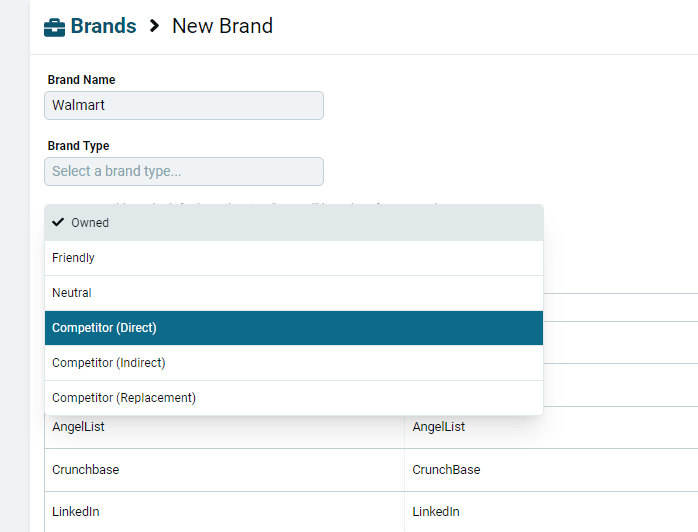
It's important to set this brand as a Competitor so you can quickly select a specific competitor or all your competition in any of your Nozzle dashboards. This will make it easier to keep track of their online performance.
You can manually add more properties using the Add Common Properties buttons. You can even add specific URLs or a variety of other properties by using the Add Property button.

⚠️ Don't forget to click the green Save Brand button when you're done!
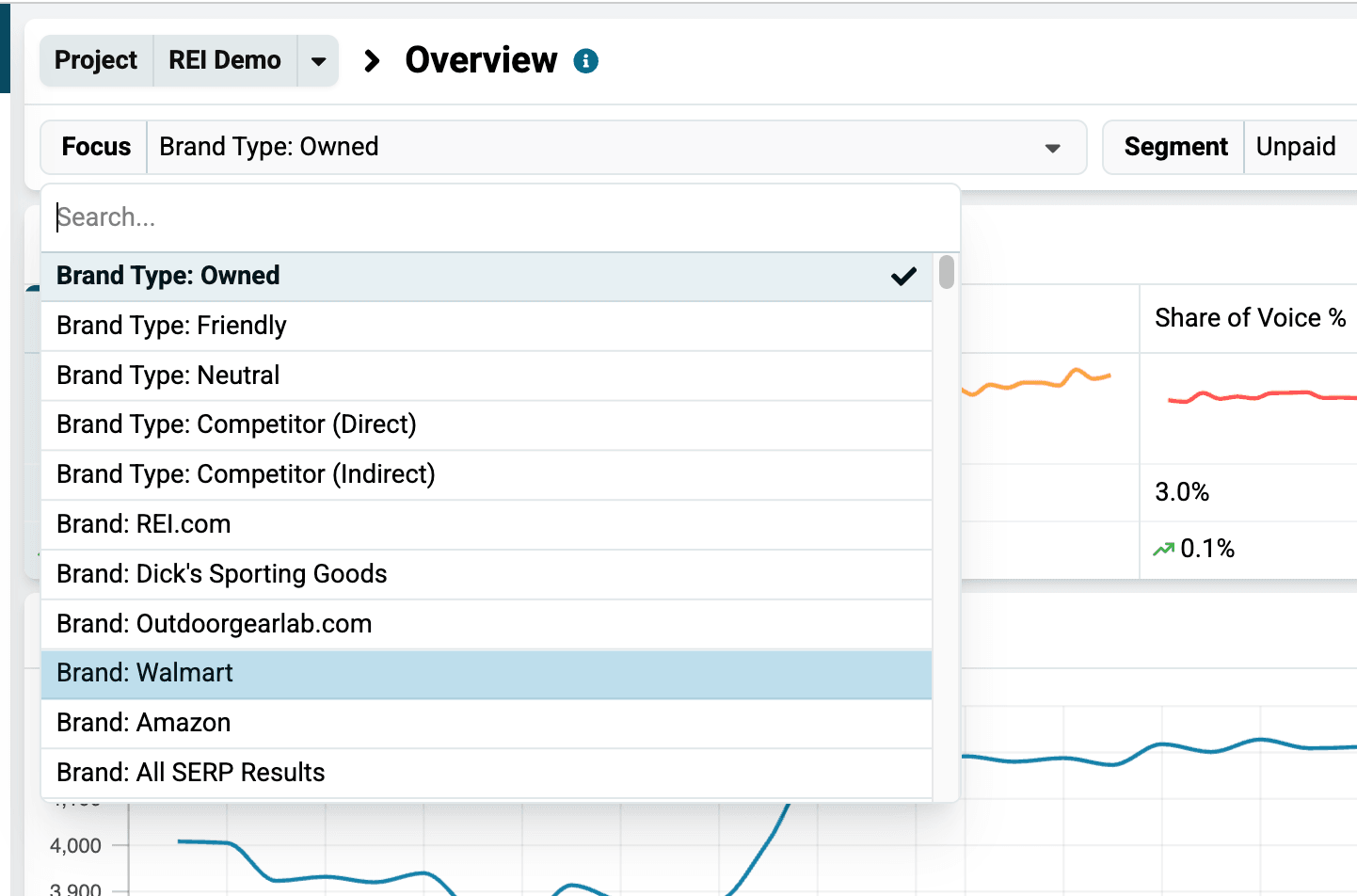
Now, you can view the ranking data for individual competitors' brands by selecting a specific Brand in the Focus dropdown on any dashboard. Or you can view them all by selecting Brand Type and then specifying the Competitor (direct or indirect) type.
Related articles