How do I add keywords?
You can add keywords and create keyword groups with just a few simple steps.
Contents
This page will cover each step and help you optimize this process.
1. From the Projects page, click the Manage Keywords in the Manage dropdown or the Keyword Manager on the left navigation panel.

2. On the Keyword Manager page, select an existing Keyword Set or click the green +Create Keyword Set button.
A Keyword Set is simply a set of keywords that share a tracking schedule and keyword mode.
If you are adding a new keyword Set, a dropdown menu will appear where you can choose your preferred input method – Basic or Advanced. (The Template Generator is under development and will be a great option for companies with lots of location/keyword combinations.)
This can also be selected or changed within the Keyword Manager.
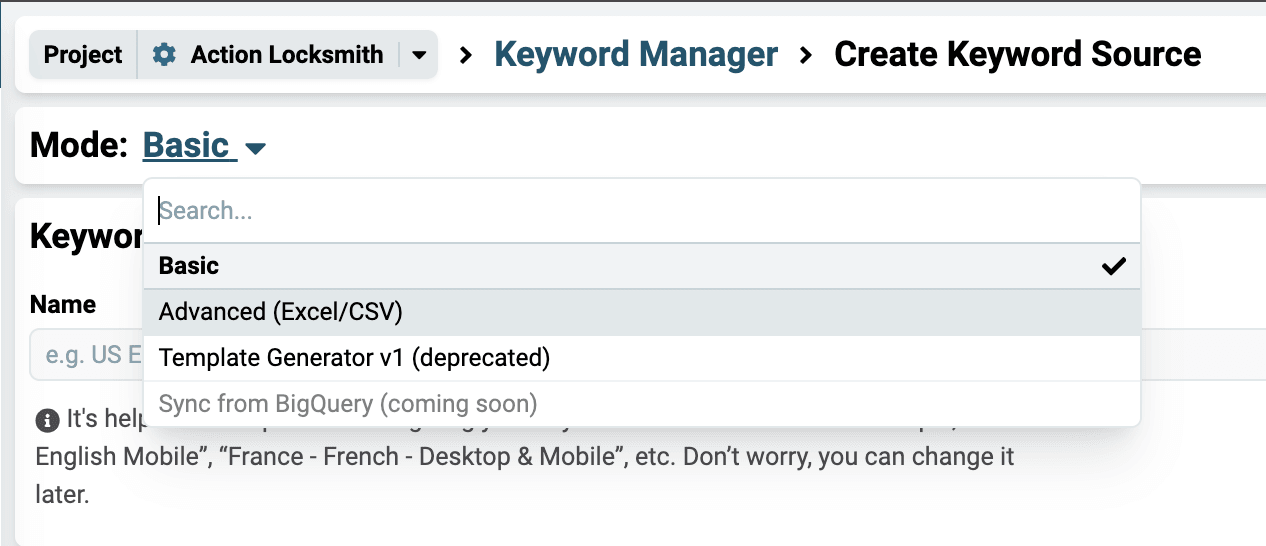
In most cases, the Basic Keywords mode should have you covered.
3. Give the Keyword Set a descriptive name.
4. Click the +Add Keyword Phrases button.
4a. Alternatively, you can import your keywords from another source, such as Google Search Console.
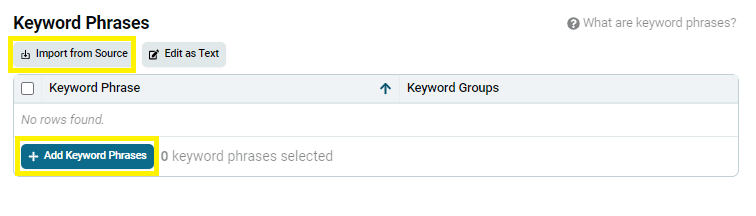
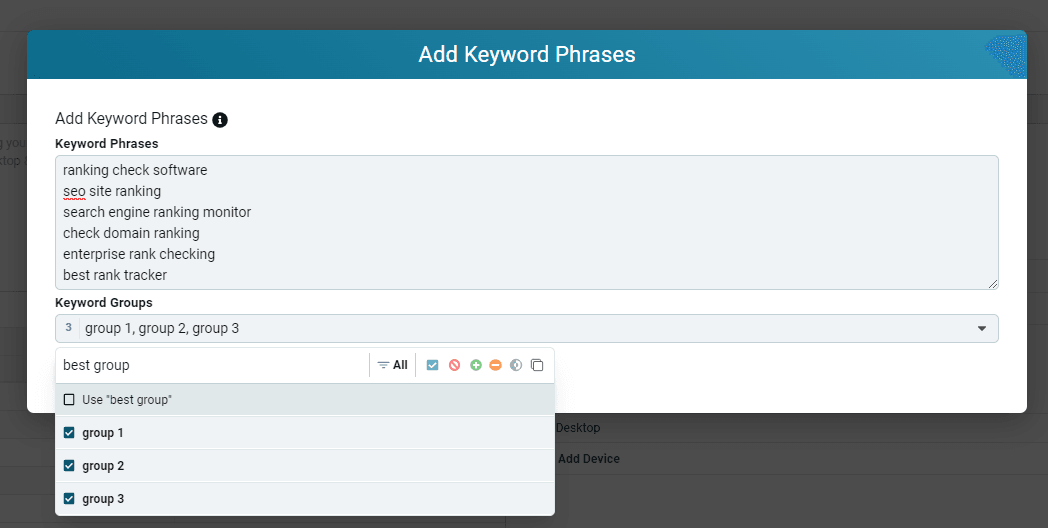
5. Type or paste all your keywords in the Add Keyword Phrases modal.
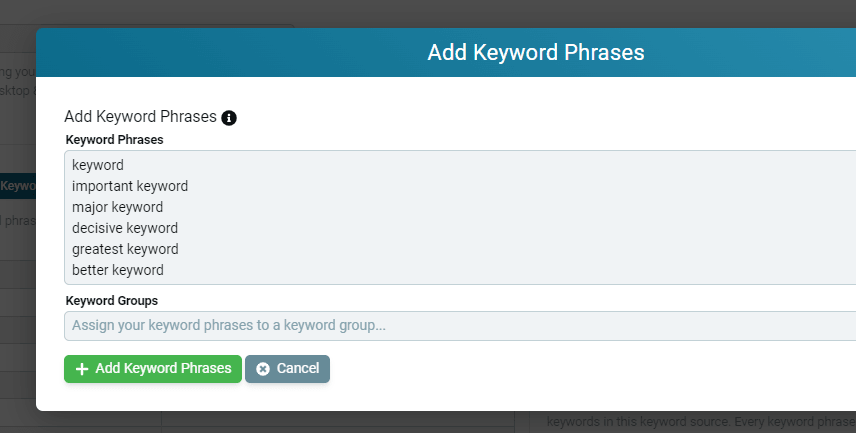
Keywords must be input one keyword per line.
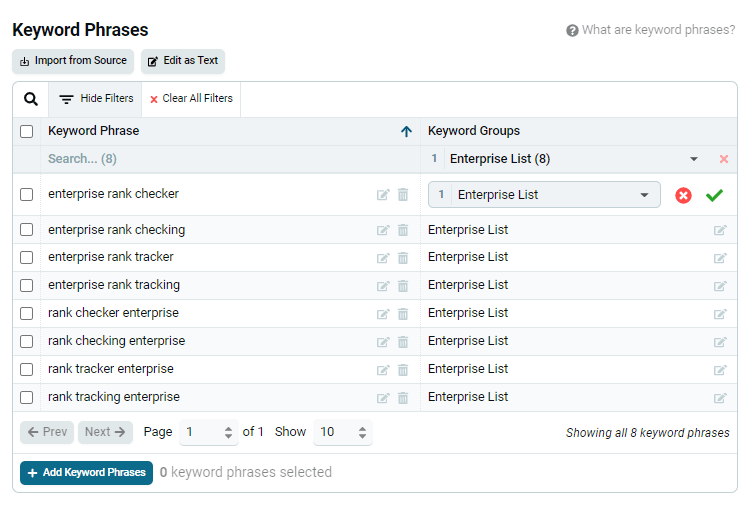
6. Click the +Add Keyword Phrases at the bottom and all of your keywords will be placed in the Keyword Phrases table.
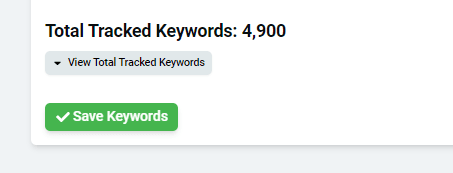
Important Note: The keywords are NOT in the system yet. Not until you click the Save Keywords button at the bottom of the Keyword Manager screen.
Adding Keywords to Keyword Groups
You can assign all of these words and phrases to one or more keyword groups in the following ways:
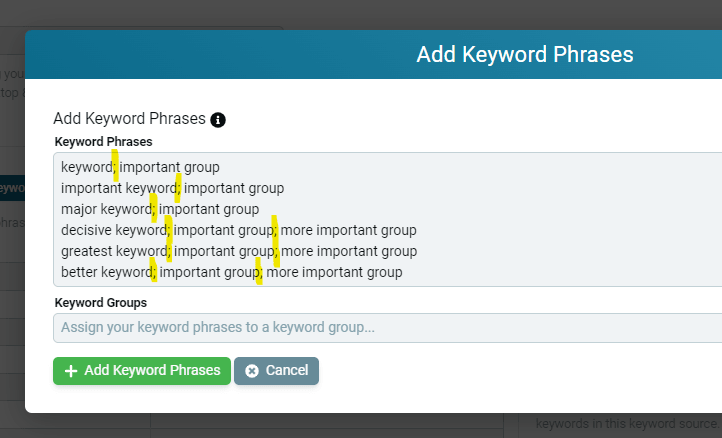
Option 1
Enter your keywords followed by a semicolon and then the name of the keyword group.
You can put the word into more than one keyword group at this time by using another semicolon and another keyword group name.
Option 2
Enter the group names in the Keyword Groups field in the popup. Every keyword you input in the Keyword Phrases field will automatically be assigned to the group or groups you enter here.
You can add or remove phrases from your keyword groups once they’ve been put into the Keyword Phrases table.
Complete the Keyword Set
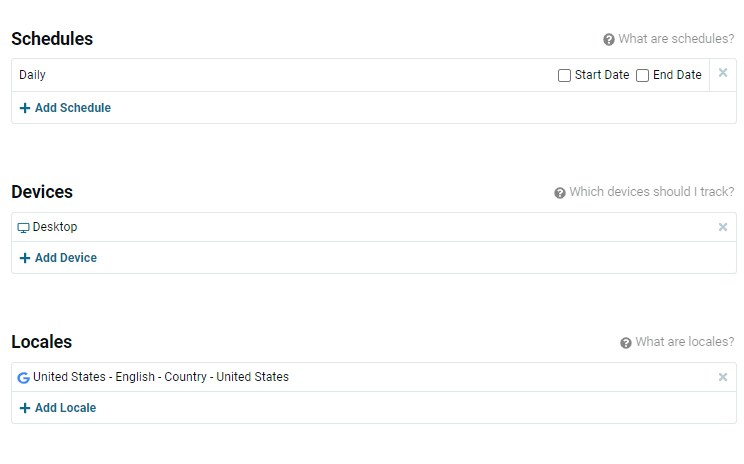
- Choose the schedule to determine when to pull your SERP data. The default setting is daily, but you can select from a range of options or set a custom start and end date for your data pulls.
- Choose the device you want to pull results for. Google serves different results to desktop and mobile users, so we can show you the results for both, or you can zero in on your preferred devices.
- Google serves different results to different locations, so choose the locales and languages of your target market. One locale is usually enough for most users, but it is possible to add more if you want to track from multiple locations.
We recommend only choosing a single mobile device unless you are tracking specific products for specific operating systems. The mobile results are close enough that most companies will have no need to track on both Mobile (iOS) and Mobile (Android).
Remember to click the Save Keywords button before you leave the page. After that, it will take 20 to 30 minutes for your first data to appear.
Now you are ready to track ALL your rankings for ALL your important keywords.
Related articles