How do I add the location from which I want to monitor my keywords?
Are you tracking your keywords from the right location?
Contents
You can track results from some very specific locations in Nozzle. The default locale is set to "Google - United States - English - Country - United States," but you have a great many other options.
The more specific options, though, will vary depending on which countries you want to track.
Getting Started
- Go to your desired keyword set page:
- Click the Projects tab in the left navigation bar
- Click the Manage dropdown next your Project's name and select Manage Keywords, or click the Keyword Manager tab in the left navigation bar
- Select your desired Keyword Set
- Scroll down until you see the Locales section.
- Click +Add Locale and then type your desired location into the Search field.
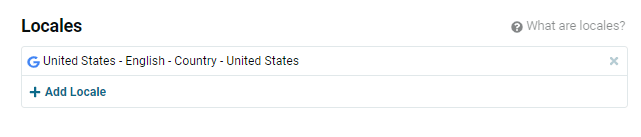
In Basic Mode
In the Basic keyword input mode, you can use the Locales section of the Keyword Set page to quickly type in all or part of the locale name and then select all your target locations.
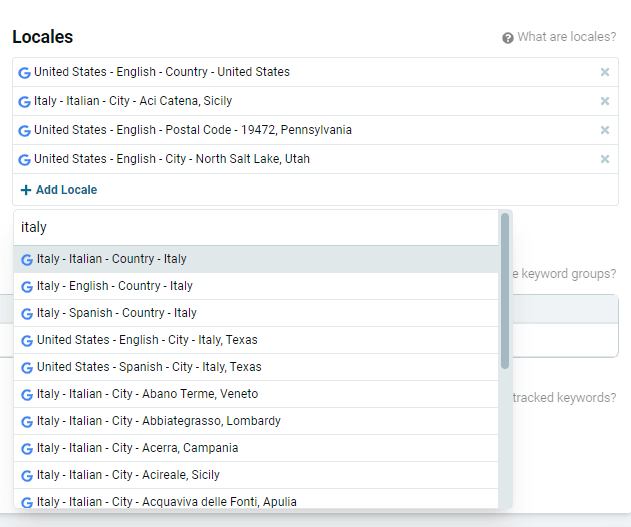
In Advanced Mode
The Advanced keyword input mode is a little different.
First, you will be able to enter your locales when you first input your keywords.
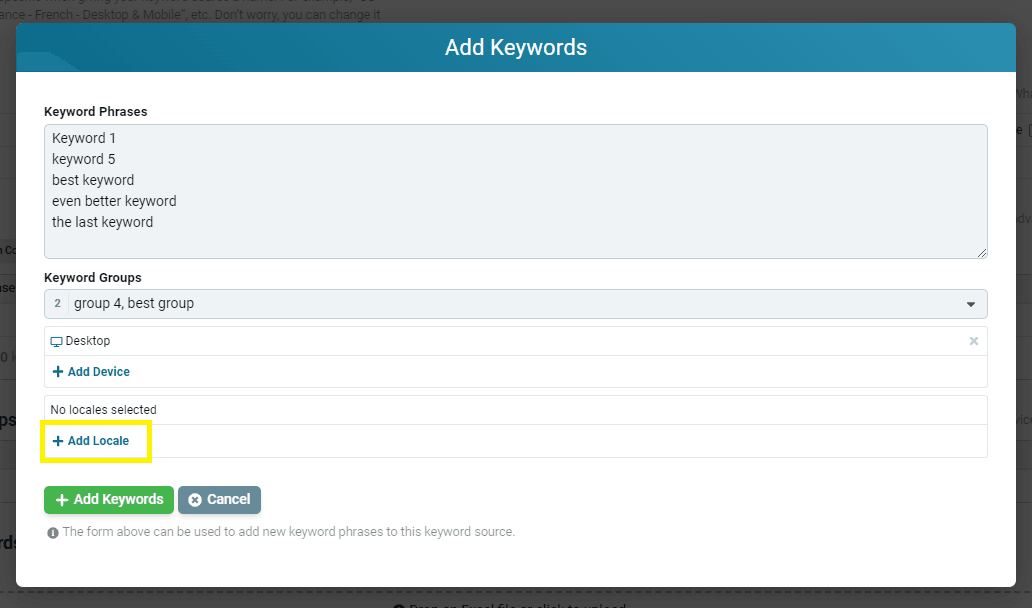
Once the keyword and their locales (and groups and devices, of course) have been added, you can change, add, or remove them.
In the Keywords chart, you can click the edit button to the right of the locale.
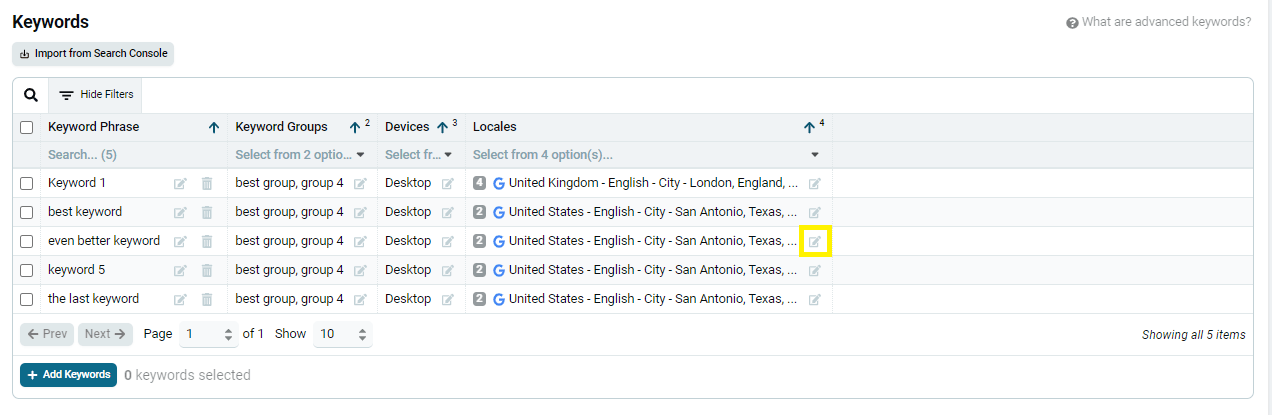
This will expand the list of locales for that keyword and allow you to add new ones or remove the ones you no longer want.
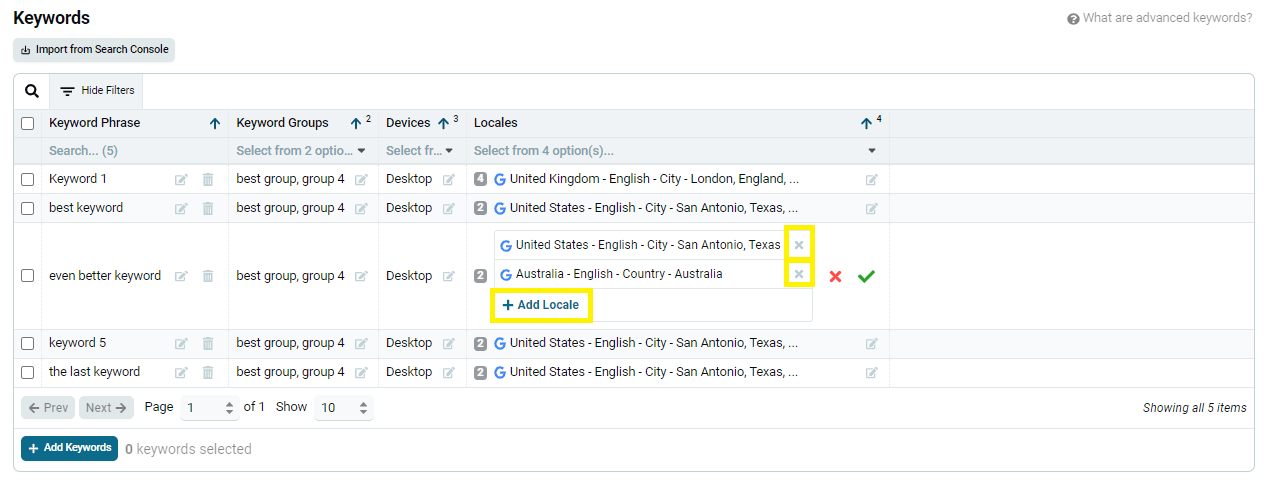
Click the green checkmark to accept these changes.
Note: this hasn't changed anything in the system yet. You must click Save Keywords at the bottom to start tracking with this new setup.
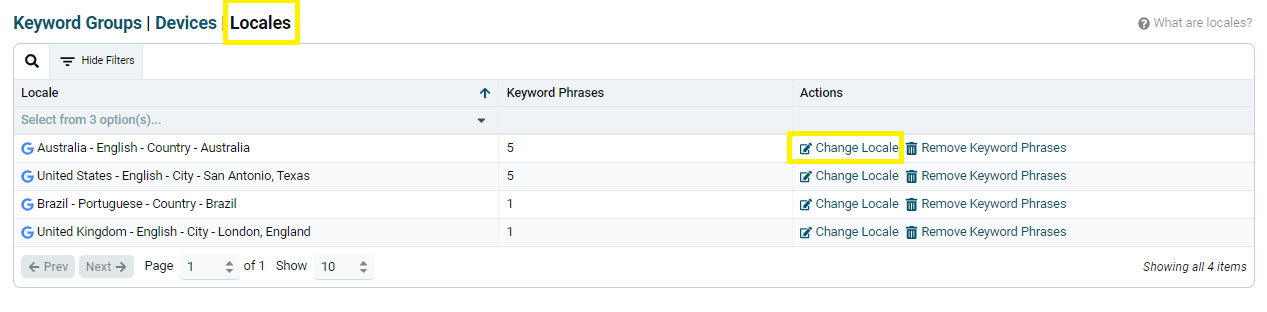
You can see all of these locales, and the number of keywords associated with them, in the Locales chart.
Simply click "Locales" where is says: "Keyword Groups | Devices | Locales"
Always click Save Keywords after you make any changes in the Keyword Manager.
Final Note: In Nozzle, a SERP is defined as a keyword x device x locale, and every SERP draws down your monthly commitment at your tier’s per-1,000 rate. So, be aware that the more locales you enter, the more SERPs you will pull, and the faster you will spend that budget.
Related articles