How do I set the tracking schedule?
This is how you select how often we pull the SERPs for your keywords.
You can set the tracking schedule for your keywords on your keyword set page:
From the All Projects dashboard (which you can always reach by clicking All Projects in the left navigation), click the Settings Cog near the project name and then Manage Keywords, then select the keyword set you wish to modify or create a new one.

On this page, you will see the Schedules section in the right column .

Click +Add Schedule to select your desired schedule, i.e., choose how often you want your keywords monitored: hourly, daily, weekly, monthly, quarterly, etc.
The default is daily, but you can choose from a wide variety of schedules.
Be sure to delete any schedules that you do not want to keep. For example, if you select a monthly schedule, be sure to delete the Daily schedule from this set.
If you want to add a custom start or end date, check the appropriate option and select the desired dates.
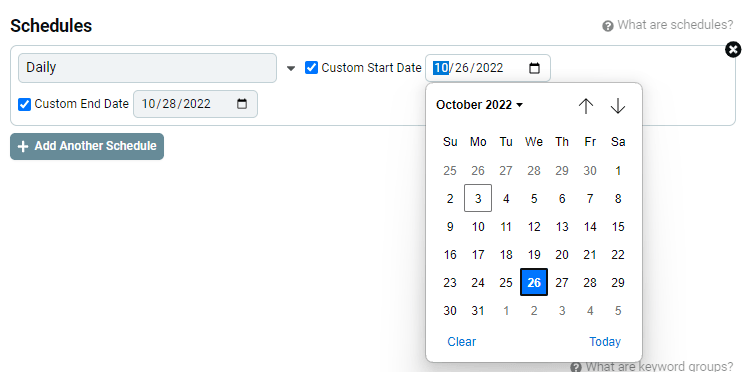
(For example, this schedule will run on October 3rd through to October 26th, stopping at midnight on the 26th. There is a caveat for hourly tracking*.)
Click the green Save Keywords button.
Now your keywords are being monitored on the tracking schedule you set.
* Unlike normal schedules, when tracking hourly Nozzle will run your keywords only once in the early morning of the custom end date (UTC time), not 24 times. For example, if your keywords are schedule to run daily, and you want to switch to hourly for November 1st and 2nd, you need to put the start date as November 1st and the end date as November 3rd. This will have the system run 24 times on November 1st, 24 times on November 2nd, and one last time on November 3rd.
Related articles