How do I embed or link to a SERP from my own tools?
Show a collected SERP inside your own dashboards, or send people straight to it in Nozzle.
Contents
Nozzle keeps the HTML of every SERP it collects, so you can show any of them from your own reports. There are two ways to do it:
- Embed the SERP in your own dashboard or app with an iframe. It shows the SERP as Google returned it, and the people viewing it don't need a Nozzle login.
- Link to the keyword in Nozzle's Single Keyword dashboard. The person clicking needs a Nozzle login with access to your workspace, and gets the whole dashboard: the keyword's history, the SERP Results table, and the SERP with Nozzle Vision.
Both are built from IDs that are already in your Nozzle data in BigQuery or your S3 export, so you can build one per row of your own data.
Embed a SERP in an iframe
The /serps/html endpoint returns one collected SERP as a standalone HTML page. It's the SERP itself, without Nozzle Vision's labels, and it loads in a browser tab, an iframe on any site, or a BI tool that can show a web page, such as a Web Page object in Tableau.
https://api.nozzle.app/serps/html?workspaceId=<workspace_id>&rankingId=<ranking_id>&apiKey=<your_api_key>Three values to fill in:
workspaceId: your workspace ID. It's in the address bar of any page in the app, afterworkspaceId=.rankingId: the SERP to show. This is the value you change for each SERP. Every SERP Nozzle collects has its own ranking ID, in theranking_idcolumn of your Nozzle data in BigQuery and in S3 exports.apiKey: an API token. See How do I create an API token? An iframe can't send theAuthorizationheader that other API calls use, so the token goes in the URL instead. Read Keep your API key safe before you put it anywhere.
Put that URL in an iframe:
<iframe
  src="https://api.nozzle.app/serps/html?workspaceId=<workspace_id>&rankingId=<ranking_id>&apiKey=<your_api_key>"
  width="100%"
  height="800"
></iframe>
Change rankingId to show a different SERP.
The frame shows the first page of Google's results. If Nozzle collected more than one page for that SERP, add &page=2 to the URL to show the second, and so on.
Each SERP is a complete page of HTML, often a megabyte or more, so a report with dozens of embeds will be slow to load. Show a few at a time, or load each one when the reader asks for it.
Without a ranking ID
If you know the keyword and the date but not the ranking ID, send keywordId and requested in its place:
https://api.nozzle.app/serps/html?workspaceId=<workspace_id>&keywordId=<keyword_id>&requested=2026-11-20T00:00:00Z&apiKey=<your_api_key>requested is the time the SERP was scheduled for, in RFC3339 format, and it has to match to the second. If you didn't schedule your keywords for a particular time, it's midnight UTC (T00:00:00Z). Keywords that run more than once a day have one scheduled time per run, which is the requested column in BigQuery. BigQuery shows requested as 2026-11-20 00:00:00 UTC, which doesn't match. Format it with FORMAT_TIMESTAMP('%Y-%m-%dT%H:%M:%SZ', requested). See The requested parameter for the other ways it can miss. If you have ranking IDs, use those instead: there's no time to get wrong.
If the frame shows an error instead of a SERP
When it can't show a SERP, the endpoint answers with a short JSON message, and the iframe shows it as text:
sql: no rows in result set: no SERP matches what you sent. Check the ranking ID, or, withkeywordIdandrequested, thatrequestedmatches the scheduled time to the second.storage: object name is empty: the SERP was scheduled but hasn't been collected yet, or wasn't collected at all. For a recent date, try again later.page 3 out of range, only 2 pages available: that SERP has fewer pages than thepageyou asked for.
A blank frame usually means the API key is wrong or has been revoked or, in a BI tool, that its admin hasn't allowed web pages from api.nozzle.app. For the rest of the API's error messages, see What do common API errors mean?
Keep your API key safe
A key in a URL can be read by anyone who can open the page: in the page source, the browser's network tab, browser history, and server logs.
That matters because a key can't be limited to showing SERPs. Every API token has full access to your whole workspace: every project, through every endpoint, including changing keyword sets. If your clients are separate projects in one workspace, one key reaches all of them.
So:
- Only put the key in an embed URL on pages behind your own login, such as an internal dashboard. Never on a public page.
- Create a token just for embedding, so you can revoke it without breaking anything else. To revoke a token, remove its user from Settings → Users.
- For a public page, or one you share outside your team, put a small server in between. The page asks your server for the SERP, and your server adds the key and fetches it from
api.nozzle.app, so the key never reaches the browser. A Cloudflare Worker or any serverless function is enough. Have it accept only a ranking ID and add the workspace ID and key itself, so that it can fetch SERPs and nothing else.- Limit which SERPs it serves. Ranking IDs are plain numbers, so a proxy that fetches any ID it's given lets anyone try nearby numbers and see every SERP in your workspace, including other clients'. Have it serve only the ranking IDs that page shows, or only IDs from that client's project.
- Serve it from its own hostname, such as
serps.example.com, not from a path on the site that embeds it. The SERP is Google's page, scripts and all, and its own hostname keeps it apart from your site.
Link to a keyword in the Single Keyword dashboard
To send someone to everything Nozzle has on a keyword, link to it in the Single Keyword dashboard. They need to be signed in to Nozzle with access to your workspace.
https://app.nozzle.io/dashboards/performance-single-keyword?workspace=<workspace_slug>&workspaceId=<workspace_id>&projectId=<project_id>&keywordId=<keyword_id>workspaceandworkspaceId: your workspace's short name and its ID. Both are in the address bar of any page in the app.projectId: the project the keyword is in. It's in the address bar whenever you're in that project.keywordId: the keyword to open. This is the value you change for each link. It's thekeyword_idcolumn in BigQuery and S3 exports, and it's in the address bar when you're looking at a keyword. A keyword ID stands for one phrase, location and device, and it stays the same as long as those do.
That link opens the keyword with the dashboard's default settings. The date range, Focus, metric and most of the dashboard's other settings are saved in the address bar too, so to link to a particular view, set it up in the app, copy the address, and swap in each keyword's ID. Remove the performanceSingleKeywordSerpWidget parameter when you do: it names the exact SERPs you were looking at, which belong to the keyword you copied it from.
If you want links to open the SERP from a particular date, contact us and tell us what you want to show. The parameters for that are hard to build by hand, and we'll help you work them out.
Need an image instead?
Neither an embed nor a link gives you an image file. For a picture of a SERP to put in a slide or a static report, open the keyword in the Single Keyword dashboard, click Export as PNG above the SERP Snapshot, and choose how much of the page to capture, from the top 2,000 pixels to the top 10,000.
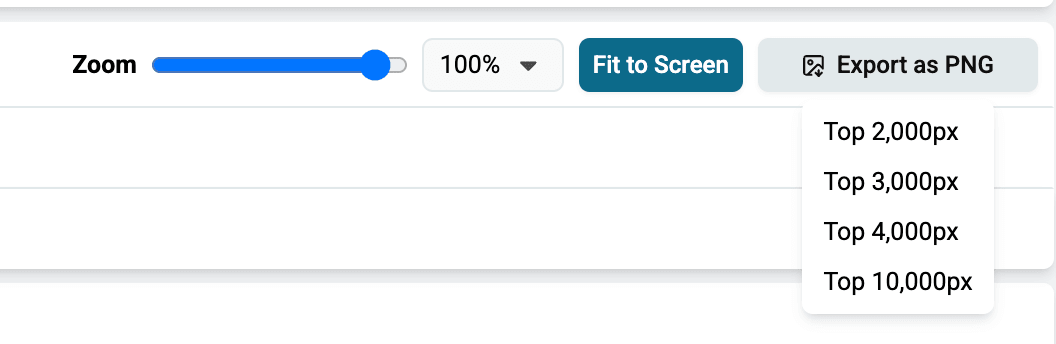
The image shows the SERP as it appears on screen, Nozzle Vision labels included. With Compare History on, it puts the dates side by side in one image.
Images are exported one at a time from the app; the API has no image endpoint. For a SERP in every row of a report, use the iframe.
Need help?
If an embed or a link doesn't show what you expect, contact us with the URL you're using, with the API key removed.